

Policy check, verified October 23, 2026: This guide follows YouTube's current Help Center pages for advertiser-friendly guidelines, limited or no ad earnings, self-certification and appeals. YouTube updates these rules. Confirm the wording in your own YouTube Studio before acting, and use the official links at the end of this article rather than an old summary.
I still remember the first time I saw the yellow dollar sign in YouTube Studio. It was on a horror game video, sometime after midnight, and my stomach dropped.
I genuinely thought my whole channel had been demonetized.
It had not. The video was still public. It was still getting views. It was still earning something, just less than usual. The notice said Limited ad earnings, which is YouTube's formal way of saying the video is eligible for some ads but not all of them.
I did what a lot of creators do in that moment: I appealed immediately without changing anything. Five days later, the review came back. The decision was confirmed. The thumbnail had a close-up of a bloody jumpscare, and no amount of wishful thinking was going to make that advertiser-friendly.
That was an expensive lesson in patience. The fix wasn't a secret appeal template. It was understanding the notice, fixing the actual cause, and using self-certification properly on the next upload.
This guide is that lesson, written down.
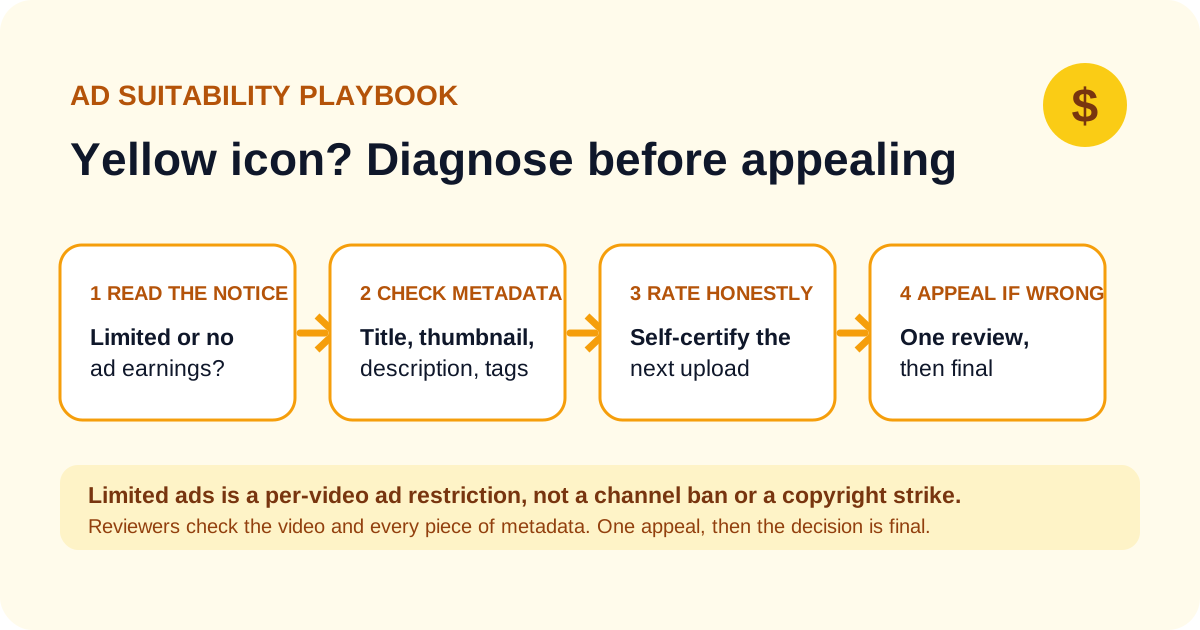
Quick answer: A yellow dollar icon is a per-video ad suitability restriction, not a channel ban, not a copyright strike, and not proof that your channel is doomed. Check whether the notice says Limited ad earnings or No ad earnings, compare the video and its metadata against YouTube's advertiser-friendly guidelines, then appeal only if you believe the automated decision is wrong. Prevent the next one by self-certifying honestly before publishing.
What the yellow dollar icon actually means
In YouTube Studio's Monetization column, the icon is a shortcut, not the full story. Hover over it and read the Notices column. That is where YouTube tells you which restriction was applied.
The two ad suitability labels you will see are:
| Notice | What it means | Does the video still earn? |
|---|---|---|
| Limited ad earnings | The video is eligible for ads, but brands that opt out of sensitive content will not run ads on it. YouTube says to expect lower ad revenue than a fully suitable video. | Yes, but usually less. |
| No ad earnings | The video is not eligible for ads under the advertiser-friendly guidelines. It may still be suitable for other revenue streams. | Not from ads. Other revenue streams may still apply. |
That second row is the one people miss. YouTube's own help page says a video with no ad earnings "may be suitable for other revenue streams." So even the worse label is not the same thing as your entire channel losing monetization.
Yellow is not red, and it is not a strike
This confused me for months, so let me save you the trouble:
- Yellow is about ad suitability. The video can stay public. With Limited ad earnings it can still earn, just not from every advertiser; with No ad earnings it will not earn from ads.
- Red / ineligible is usually about a copyright claim or another hard monetization block.
- A Community Guidelines strike is a separate enforcement system. It is not what the yellow icon means.
- Invalid traffic does not produce a yellow icon. YouTube says yellow icons are applied based on advertiser-friendly guidelines, not invalid traffic. If your issue is invalid traffic, you are looking at a different problem.
I have seen creators delete an entire catalog because of one yellow icon. Please do not do that. Read the notice first.
"Ad suitability" vs "Confirmed by review" matters
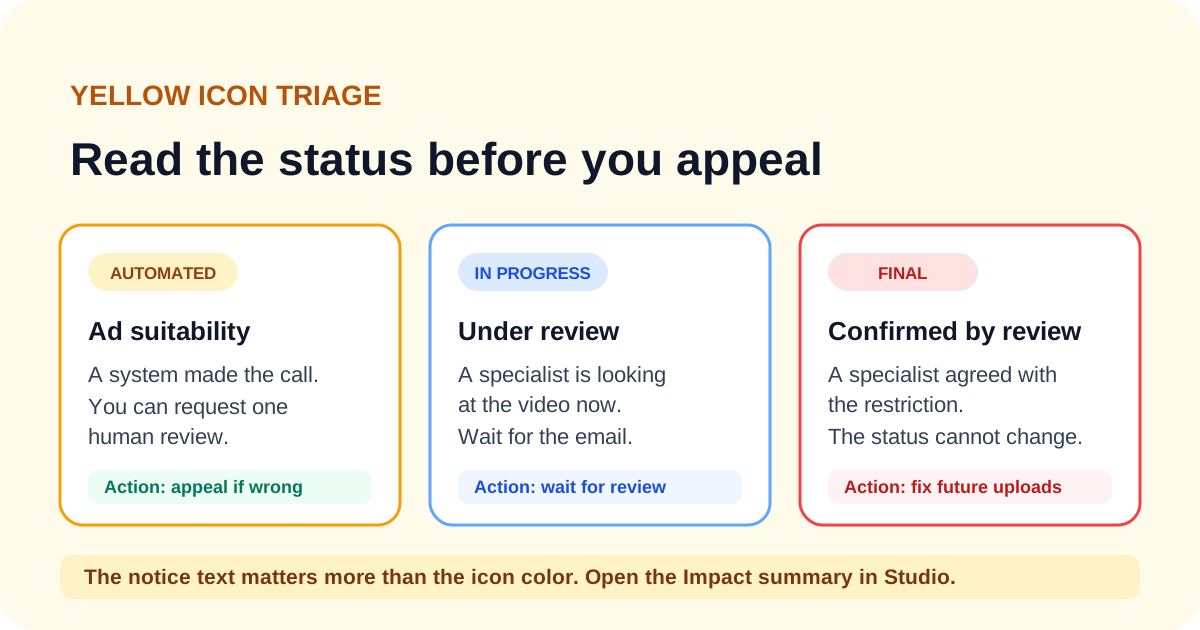
There are three versions of the yellow status you will run into:
- Ad suitability — an automated system made the call. You can usually request a human review.
- Ad suitability - Under review — a policy specialist is looking at it. Wait. Do not submit duplicate requests.
- Ad suitability - Confirmed by review — a specialist agreed with the restriction. YouTube says this status cannot be changed.
That third one is why my first appeal was a waste. Once a human confirms the decision, you are not going to appeal your way out of it.
It is an earnings restriction, not a reach restriction
YouTube's notice documentation groups ad suitability under ways to earn. Reach restrictions are things like age restriction or regional blocks. A yellow icon does not automatically hide your video from viewers or kill its impressions.
Does that mean reach never changes? No. If viewers engage differently, or if the topic is sensitive, other metrics can move too. But do not tell yourself the algorithm "suppressed" the video unless your analytics actually show a reach restriction. The yellow icon is primarily about which ads can run.
Why YouTube flagged your video
YouTube's reviewers do not only watch the video. They assess:
- The video itself
- The title
- The thumbnail
- The description
- The tags
That list is the part creators underestimate. I once assumed the video file was the only thing that mattered. It is not. A clean video with a bloody thumbnail is still a thumbnail problem.
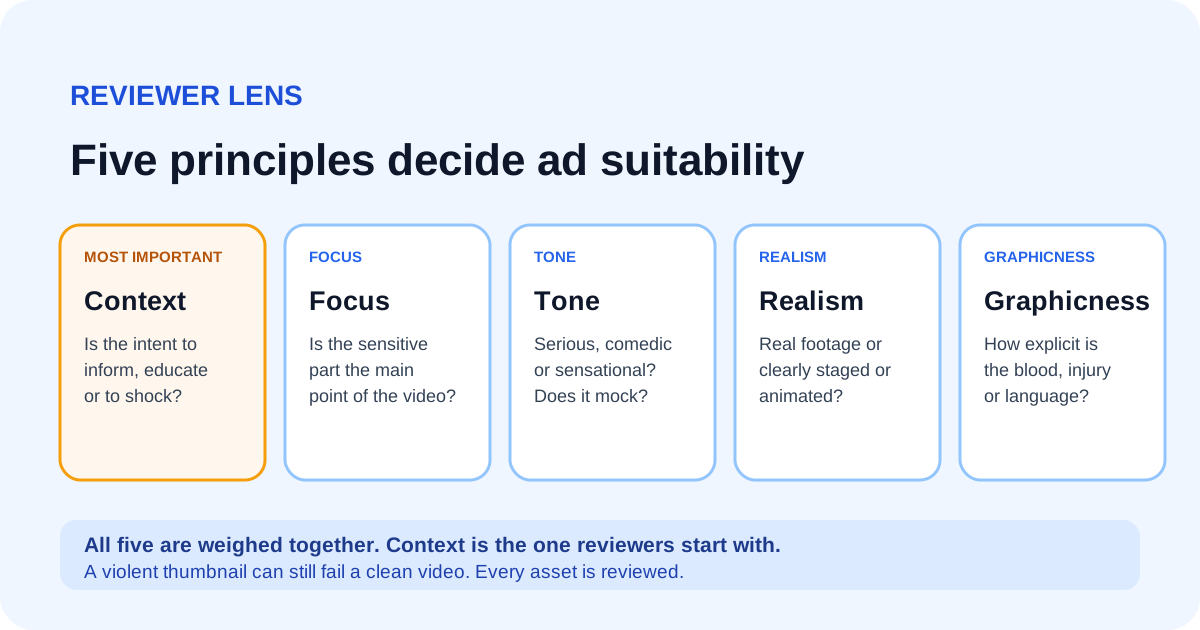
YouTube says reviewers apply five principles:
- Context — Is the intent to inform, educate, or entertain, or to shock and incite?
- Focus — Is the sensitive material the main point, or a brief part of a larger topic?
- Tone — Is it serious, educational, comedic, sensational?
- Realism — Does it look like real violence or clearly staged content?
- Graphicness — How explicit is the blood, injury, language, or imagery?
Context is the biggest one. YouTube's own example is useful: a video with some swearing can still get ads, while a video with no swearing but a large amount of violent content may not. The words alone do not decide it. The whole picture does.
The triggers I see most often in gaming
Here is the short version, based on YouTube's advertiser-friendly guidelines and my own mistakes:
| Trigger | What it can look like | What usually helps |
|---|---|---|
| Profanity | Strong language in the first seconds, or in the title or thumbnail | Bleep, mute, or avoid it in the hook and metadata |
| Violence | A gore montage, prolonged graphic injury, horror jumpscare thumbnails | Trim, blur, add context, and keep the thumbnail non-graphic |
| Shocking content | Graphic thumbnails, disturbing imagery, gross-out moments | Choose a different frame, not a more shocking one |
| Controversial issues | Sensational commentary on politics, crime, or tragedy | Add educational context and avoid inflammatory framing |
| Sensitive events | Recent tragedies, mass violence, disaster content | Be careful with timing, tone, and graphic detail |
| Adult content | Sexual themes, suggestive thumbnails, explicit discussions | Keep it non-explicit and avoid suggestive metadata |
| Harmful acts | Dangerous pranks, challenge videos, instructional harm | Do not frame harmful behavior as instructional |
| Drugs, tobacco, firearms | Promotion or focal use of these topics | Avoid promotion and keep context clear |
| Hateful or demeaning content | Slurs, harassment, demeaning commentary | Remove it. There is no clever editing fix. |
| Dishonest behavior | Scams, fake giveaways, "free V-Bucks" style content | Do not make it, and do not title it like a scam |
| Music and third-party content | Copyrighted tracks or footage that trigger claims | Treat copyright and ad suitability as separate problems |
A quick warning: some of these are not "edit the thumbnail and you're fine" issues. Hateful content, scams, and harmful instructions are policy problems. Fixing the metadata will not make the underlying video advertiser-friendly.
Why a green video can turn yellow later
YouTube's icon guide says monetization status can change after upload and "will generally stabilize within 24 hours." It also says status can change even after that based on how viewers interact with the video.
That is not YouTube randomly punishing you. The system keeps scanning, and new context can change the assessment. I have had a video go green, then yellow, then green again before it settled. Waiting a day before panicking is usually the right move.
Where self-certification fits
Self-certification is YouTube's system for telling the platform what is in your video before it goes public. You answer a questionnaire about the content, and YouTube uses that information alongside its own checks.
It is not a "get ads no matter what" button.
Here is how YouTube describes it:
- You rate all new videos where you turn on ads.
- You also rate previously uploaded videos where you now want to turn on ads.
- You do not have to rate existing videos that already have ads turned on.
- The video still goes through ad suitability checks.
- If you disagree with a flag, you can still request an appeal.
- If your ratings are consistently accurate, YouTube says it may rely on your input over its automated systems.
- If your accuracy is low or unknown, YouTube may rely on your input less and point you back to reviewer feedback.
Access usually appears a month or two after joining the YouTube Partner Program. You will see a message in Studio when it is available. Self-certification also works for content marked as made for kids, though those videos are only eligible for non-personalized ads.
It is not self-approval
This is the part I want to be very clear about, because it is where people get themselves into trouble.
Self-certification does not mean YouTube trusts you blindly. If your video does not meet the guidelines and you turn on ads anyway, policy specialists can still demonetize it. YouTube's help page says repeated, egregious inaccuracies can even put your channel's YPP eligibility under review.
So do not tick "None of the above" just because you want the green icon. That is not a strategy. It is a slow way to make your ratings worthless.
The accuracy feedback loop is genuinely useful
After you have rated around 20 videos, YouTube can typically tell how accurate you are. The rating status page shows:
- What you rated
- What YouTube's systems or human reviewers decided
- Where you disagreed
- Whether the decision came from a computer or a human
- Feedback from reviewers
That feedback is free coaching. If YouTube keeps flagging "inappropriate language" and you keep missing it, that is a pattern you can fix. My first ten ratings were humbling. I was way too generous about what counted as "mild" profanity.
My pre-publish workflow (the part that prevents most yellow icons)
This is the routine I use now. It is not glamorous, but it has saved me more revenue than any appeal.
1. Upload as private or unlisted first
YouTube recommends uploading early as private or unlisted so the ad suitability check can finish before you publish. The upload check usually takes less than 20 minutes and at most about an hour. If your video gets an extra human review, a monetization decision may take up to 24 hours.
If you publish first and check later, you are gambling with your first-day revenue.
2. Watch the video with policy eyes
I watch at 1.5x and note timestamps for:
- Strong language
- Blood, injury, or prolonged violence
- Shocking imagery
- Sensitive topics
- Anything that could be read as promotion of a harmful act
I am not looking for reasons to be scared. I am looking for the three or four moments a reviewer would pause on.
3. Fix the content if it is genuinely fixable
Depending on the issue, I will:
- Bleep or mute profanity
- Blur graphic frames
- Trim a gore montage
- Reframe a horror thumbnail
- Add a spoken or written content warning and context
- Cut a joke that depends on a harmful stereotype
What I will not do is pretend the content is fine and hope the system misses it.
4. Fix the metadata before the video goes live
This is the step I used to skip. Check the title, thumbnail, description, and tags as if they were the only thing a reviewer would see.
Ask yourself:
- Does the title contain profanity or a shocking claim?
- Does the thumbnail show blood, a weapon, a corpse, or a distressed face in a way that reads as graphic?
- Does the description contain the same language you cleaned up in the video?
- Do the tags include offensive or misleading terms?
A clean video with a violent thumbnail is still a yellow icon waiting to happen.
5. Self-certify honestly
During upload, turn Monetization on, continue through Advanced settings, and fill in the Ad suitability questionnaire before you reach the Checks page.
Go through the questionnaire and rate what is actually in the video. If the answer is "yes, there is moderate profanity," say yes. If the answer is "no, none of this applies," only then choose "None of the above."
The questionnaire covers categories such as inappropriate language, violence, adult content, shocking content, harmful acts, hateful or derogatory content, recreational drugs, firearms, controversial issues, sensitive events, dishonest behavior, kids and family content, incendiary content, and tobacco. Read the examples for any category you are unsure about. Guessing is how accuracy ratings fall.
The goal is not to get the green icon by any means necessary. The goal is to be accurate enough that YouTube can trust your input.
6. Check the Checks page and wait
The Checks page shows copyright and ad suitability results. If something looks wrong, that is the moment to request a human review — before publishing, not after.
If the check is still running, wait. Do not publish and then refresh Studio every five minutes. I have done that. It does not help.
7. Publish only after the status settles
If the video is green, publish. If it is yellow and you believe it is a false positive, appeal before or shortly after publishing. If it is yellow and the flag is accurate, decide whether you want to publish as-is with limited ads or change the content.
The pre-publish checklist I actually use
- Video uploaded as private or unlisted
- Profanity checked in the first 30 seconds
- Profanity checked in the title, thumbnail, description and tags
- Gore and injury scenes reviewed for focus and duration
- Thumbnail checked for blood, weapons, corpses, or shock imagery
- Sensitive topics given clear educational context
- Music and third-party footage checked separately for claims
- Self-certification questionnaire answered honestly
- Checks page reviewed
- Status stable before publishing
That is ten minutes of work. It is worth it.
Already yellow? Do this, in order
If the icon is already there, here is the order I use now.
Step 1: Read the notice, not just the icon
Open YouTube Studio → Content, hover over the status in the Notices column, and read the Impact summary.
You are looking for:
- Limited ad earnings or No ad earnings
- Ad suitability, Under review, or Confirmed by review
- Any other notice, such as a copyright claim, that might be the real cause
Do not appeal until you know which problem you have.
Step 2: Decide whether the flag is accurate
Compare the video and metadata against the advertiser-friendly guidelines. Be honest with yourself. If the thumbnail has a bloody corpse, the flag is probably correct. If the video is a clean tutorial and the flag says "shocking content," you may have a false positive.
This is the step where most creators waste their one appeal. They appeal because they are angry, not because the video is compliant.
Step 3: If it is a false positive, appeal once
YouTube's process:
- Sign in to YouTube Studio.
- Open Content.
- Find the video.
- Hover over the status in the Notices column.
- Review the Impact summary.
- Select the Action button to start the appeal.
A policy specialist reviews the video, title, thumbnail, description and tags. The appeal can take up to 7 days. You get an email with the decision.
After that one appeal, the decision is final. YouTube says the monetization status will not change after a human reviewer decides.
If you used YouTube's self-certification flow on desktop, the appeal feedback may include policy timestamps. Those timestamps show where a reviewer found an issue. They are for understanding the decision, not a step-by-step guide to editing the video and resubmitting it.
If you are in the European Union, there may be additional resolution options under the Digital Services Act. That is separate from the normal appeal flow.
Step 4: If the flag is accurate, do not burn the appeal
This is the hard part. If the video genuinely violates the guidelines, an appeal will not save it. You have two realistic options:
- Leave it up with limited ads and accept the lower revenue.
- Use the feedback to make the next video compliant.
What you should not do is delete and re-upload. YouTube explicitly says deleting and re-uploading a video will not help. You are not hiding from the system; you are just losing your views, comments and watch history.
One more nuance that surprised me: YouTube's self-certification help says videos, thumbnails and titles edited in Studio to remove violative content are not eligible for re-review. So editing the thumbnail after a final decision is not a magic reset button. If the content was the problem, fix it before the next upload.
Step 5: Log the outcome
I keep a simple spreadsheet with:
- Video title
- Date
- Notice type
- What I thought caused it
- Whether the appeal changed anything
- What I changed for the next upload
After a few months, patterns show up. Mine was horror thumbnails. Yours might be profanity in the first ten seconds, political commentary, or music.
What not to do
I have made most of these mistakes, so this list is earned:
- Do not delete and re-upload. YouTube says it will not help, and you lose your existing engagement.
- Do not spam appeals. You get one appeal per video. A second angry request is not a strategy.
- Do not lie on the self-certification form. It can lower your rating accuracy, and repeated egregious inaccuracies can put your YPP eligibility under review.
- Do not make the thumbnail more shocking to "save CTR." That is how a green video becomes yellow.
- Do not assume the yellow icon is a channel-wide demonetization. It is per-video unless you have a separate channel-level notice.
- Do not edit the video and expect a guaranteed re-review. YouTube says content edited to remove violations is not eligible for re-review.
- Do not blame "the algorithm" before reading the notice. The Impact summary usually tells you exactly which category is at issue.
How much revenue is actually at risk?
Limited ads does not mean zero revenue. It means some advertisers will not bid, so your effective CPM and RPM usually drop.
Here is a deliberately simple scenario. Suppose a video gets 50,000 views and your normal RPM is $2.00. That is roughly $100 in revenue (50 × $2). If limited ads cuts the effective RPM to $1.30, the same views produce about $65. The difference is $35.
That is not nothing. But it is also not "my channel is over."
A few things to keep in mind:
- RPM already includes more than ads, so it can move for reasons unrelated to the yellow icon.
- One video's RPM is not a benchmark for another video.
- Geography, traffic source and seasonality can change RPM more than a single ad restriction.
- If you want to model scenarios, use the YTKits Revenue Estimator and treat the output as a range, not a promise.
For a deeper explanation of why RPM and CPM move differently, read YouTube RPM vs CPM. If you are trying to raise the ceiling on the videos that are fully monetized, my CPM experiments cover what actually moved the needle on my gaming channel.
A prevention system that works
After a few yellow icons, I stopped treating each one as a random event. Here is the system I use now.
Build a metadata rulebook
For my channel, the rules are simple:
- No profanity in titles or thumbnails.
- No blood, corpses, or graphic injury in thumbnails.
- No misleading "you won't believe" claims.
- Description includes context for sensitive topics.
- Tags describe the actual content, not trending words unrelated to the video.
Write your own rules down. A rule you remember is a rule you will eventually break at 1 a.m.
Keep a yellow log
Every notice goes in the spreadsheet. After three or four entries, you will see the pattern. Mine was thumbnails. A friend's was profanity in the first 15 seconds. Another creator I know kept getting flagged for "sensitive events" because he covered true crime without enough context.
Review your rating accuracy monthly
The self-certification rating status page shows where you and YouTube disagreed. If you keep missing the same category, read the reviewer feedback and adjust. This is the closest thing to a free calibration session.
Treat Shorts and live streams the same way
Ad suitability applies to Shorts and live streams too. YouTube says scheduled live streams are checked before the stream goes live using the title, description, thumbnail and tags. Do not spend hours on a stream and then discover the thumbnail is the problem.
Add context instead of hiding it
If your video is educational, journalistic, or documentary in nature, say so in the title and description. YouTube's reviewers use metadata for context. A video about a historical battle and a video celebrating violence can look similar in a thumbnail. The metadata is how you explain the difference.
That is not a loophole. It is communication.
FAQ
Does the yellow icon mean my channel is demonetized?
No. It is a per-video ad suitability restriction. Your channel can still be in the YouTube Partner Program, and the video can still earn, just less. Check the notice text for Limited ad earnings or No ad earnings.
Can I appeal more than once?
You get one appeal per video. After the reviewer's decision, YouTube says the monetization status will not change. Make the appeal count.
How long does an appeal take?
YouTube says appeals can take up to 7 days. You get an email when the decision is made.
Does deleting and re-uploading fix the yellow icon?
No. YouTube explicitly says deleting and re-uploading will not help. It also costs you the views, comments and watch history the original video had.
Will changing the thumbnail fix it?
Not automatically. YouTube says videos, thumbnails and titles edited in Studio to remove violative content are not eligible for re-review. If the thumbnail was genuinely the problem, fix it for the next upload and do not expect a final decision to reopen.
Does self-certification guarantee ads?
No. Self-certification tells YouTube what is in your video. The video still goes through ad suitability checks, and policy specialists can still demonetize content that does not meet the guidelines.
Why did my green video turn yellow later?
YouTube's icon guide says monetization status can change after upload and generally stabilizes within 24 hours. It can also change later based on how viewers interact with the video. Wait for it to settle before assuming the worst.
Does a yellow icon reduce my reach?
YouTube's notice system groups ad suitability under "ways to earn," not "reach." The primary effect is ad eligibility and revenue. If you also see a reach restriction, such as an age restriction or regional block, that is a separate notice.
Do I lose all revenue on a video with no ad earnings?
You lose ad revenue. YouTube says the video may still be suitable for other revenue streams. Check the Impact summary for the full picture.
Is a yellow icon the same as a copyright strike?
No. Copyright claims and strikes are a different system. A yellow icon is about advertiser-friendly content guidelines. If you see a copyright notice, read that notice separately.
The bottom line
The yellow icon feels personal. It is not. It is a per-video signal that something in the video or its metadata did not clear the advertiser-friendly bar.
Read the notice. Decide whether the flag is accurate. Appeal once if it is wrong. Fix the real cause if it is right. Then use self-certification honestly on the next upload so you stop repeating the same mistake.
That is the whole fix. No secret appeal script. No need to delete your catalog.
If you want to check whether a channel appears monetized before you model its revenue, the YTKits Monetization Checker is a useful starting point. If you are still working toward eligibility, start with the current YouTube monetization requirements rather than an old blog post.
And if you take one thing from this article, make it this: the cheapest yellow icon is the one you catch before you hit publish.
Sources
- YouTube Help: Advertiser-friendly content guidelines
- YouTube Help: Limited or no ad earnings explained
- YouTube Help: Submit an appeal for videos with "Limited ad earnings" or "No ad earnings"
- YouTube Help: How advertiser-friendly monetization reviews work
- YouTube Help: Monetization icon guide for YouTube Studio
- YouTube Help: YouTube Self-Certification overview
- YouTube Help: Understand your Content tab and manage notices